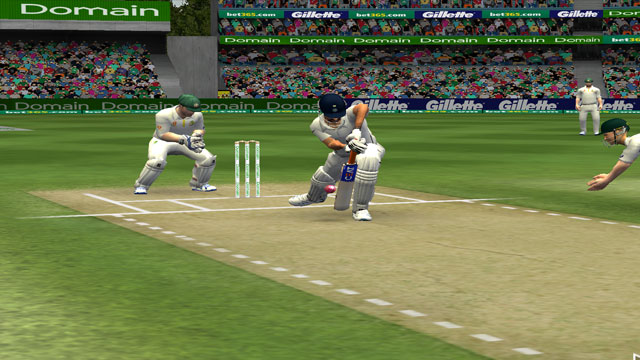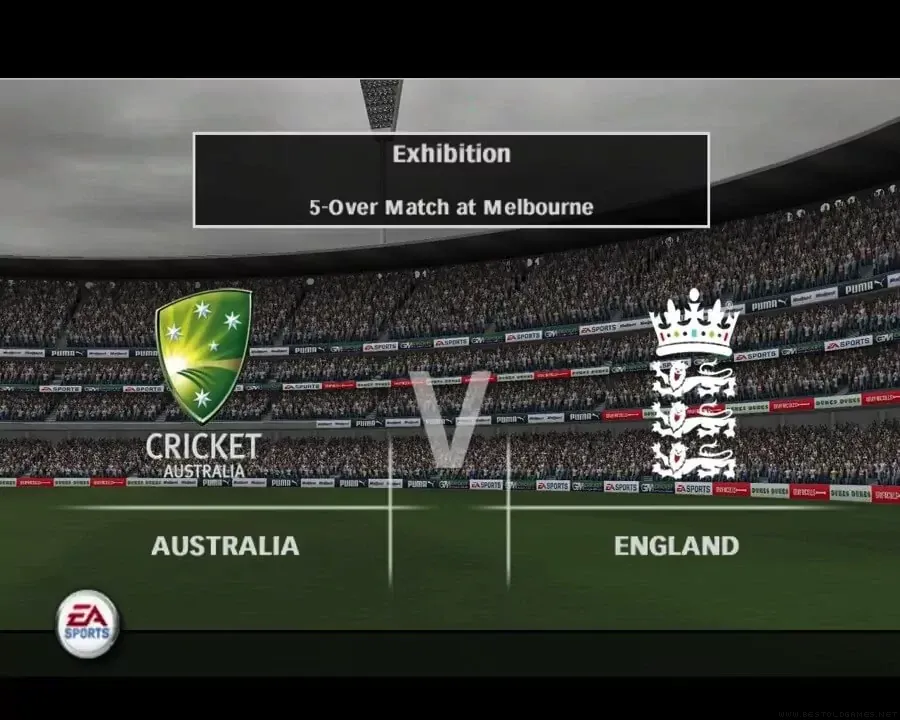
Cricket fans still love EA Sports Cricket 07, even though it was released back in 2006. Thanks to its realistic gameplay and unlimited mods, it continues to be one of the most played cricket games worldwide. But since it was designed for older operating systems like Windows XP, many users wonder: Can you install and run Cricket 07 on Windows 11?
The answer is yes, and this guide will show you exactly how to install Cricket 07 on Windows 11 without errors.
Step 1: Check System Requirements
Before installing, make sure your PC meets the basic requirements. The good news is Cricket 07 is lightweight, so almost every modern Windows 11 system can run it.
- OS: Windows 11 (works in compatibility mode)
- Processor: 1.6 GHz or higher
- RAM: 1 GB or more
- Graphics Card: 64 MB with DirectX 9 support
- Storage: 2 GB free space
If your computer runs Windows 11 smoothly, it can easily handle Cricket 07.
Step 2: Get the Cricket 07 Setup Files
You’ll need the official Cricket 07 installer. Options include:
- Original DVD/CD (if you still have the disc)
- Digital copy (from a trusted source or backup)
Tip: Avoid downloading from unverified websites, as cracked versions may contain malware. Always choose safe, reliable sources.
Step 3: Install Cricket 07 on Windows 11
Once you have the setup file, follow these steps:
- Insert the disc or open the installer.
- Run the setup as Administrator → Right-click the setup file > “Run as administrator.”
- Follow the installation wizard → Choose your installation folder.
- Finish installation → The game will now be installed on your PC.
Step 4: Fix Compatibility Issues on Windows 11
Since Cricket 07 was built for Windows XP, you may face errors. Here’s how to solve them:
- Right-click on the Cricket 07 shortcut.
- Go to Properties > Compatibility tab.
- Check Run this program in compatibility mode → Select Windows XP (Service Pack 3).
- Check Run as Administrator for better stability.
- Click Apply and OK.
This ensures the game launches without crashes or black screen issues.
Step 5: Apply Patches and Mods (Optional)
The Cricket 07 community is still active in 2025, providing updated mods such as:
- IPL, BBL, and World Cup patches
- Updated kits and stadiums
- High-resolution graphics mods
Install mods carefully by following the included instructions. Keep a backup of your original Cricket 07 folder to avoid errors.
Step 6: Launch and Enjoy Cricket 07
Now that the setup is complete, double-click the Cricket 07 shortcut. You should be able to play the game smoothly on Windows 11.
If you face lag, try these tips:
- Lower graphics settings from in-game options.
- Close background apps before launching.
- Keep DirectX and GPU drivers updated.
Final Thoughts
Installing Cricket 07 on Windows 11 is simple if you follow the right steps. By running it in compatibility mode and applying a few tweaks, you can relive the nostalgia of one of the best cricket games ever made. And with mods, you can enjoy updated tournaments and players well beyond its original 2006 release.